Documentation
Complete guide to UnityGameTranslator mod and website
Quick Start
Get up and running in 3 simple steps:
Tip
No AI required! The mod works perfectly with downloaded community translations. Enable AI translation only if you want to translate untranslated text.
Installation
1 Install a mod loader
| Mod Loader | Unity Type | Download |
|---|---|---|
| BepInEx 5 | Mono | GitHub |
| BepInEx 6 | Mono IL2CPP | Bleeding Edge |
| MelonLoader | Mono IL2CPP | GitHub |
How to identify your game type:
GameAssembly.dll in game folder → IL2CPP
<Game>_Data/Managed/*.dll → Mono
2 Download UnityGameTranslator
Download the version matching your mod loader, then extract to the appropriate folder:
BepInEx
Extract the contents of the BepInEx archive into a UnityGameTranslator subfolder:
<Game>/BepInEx/plugins/UnityGameTranslator/
MelonLoader
Extract the DLL files directly into the Mods folder (MelonLoader does not scan subfolders):
<Game>/Mods/
User data, config, translations, fonts and images are stored separately in UserData:
<Game>/UserData/UnityGameTranslator/
Do NOT place the MelonLoader DLLs inside a subfolder of Mods/. MelonLoader only scans the root Mods/ folder and will not find mods inside subdirectories.
3 Enable Translation Backend Optional
By default, the mod uses cached or downloaded translations. To enable live translation, configure a backend:
AI — Local (free, offline)
Install Ollama or LM Studio — no API key, no internet, no cost
AI — Cloud (no GPU needed)
Any OpenAI-compatible server: Groq, OpenRouter, OpenAI, Google Gemini, and more
Translation APIs
Google Translate or DeepL — fast, no GPU required, free personal-use plans available (check provider terms)
In the mod: open Settings → Translation tab, select backend, enter URL/key, test connection, and enable.
URL format for AI servers
The mod auto-appends /v1/chat/completions if the URL doesn't end with /completions. For providers with non-standard URLs (like Gemini), enter the full path.
| Provider | URL to enter |
|---|---|
| Ollama | http://localhost:11434 |
| LM Studio | http://localhost:1234 |
| Groq | https://api.groq.com/openai |
| OpenAI | https://api.openai.com |
| Google Gemini | https://generativelanguage.googleapis.com/v1beta/openai/chat/completions |
Recommended local model
qwen3.5:latest (9B) is the recommended local model via Ollama. It supports 201 languages and dialects and uses ~6 GB of VRAM. On a dedicated GPU, 12 GB VRAM (e.g. RTX 3060 12 GB / 4070, or AMD RX 6800+) is comfortable for running the model alongside the game; on 8 GB cards, Ollama will offload part to system RAM (slower). On Apple Silicon, 16 GB of unified memory is enough. If your GPU is too limited, use an OpenAI-compatible cloud endpoint instead (some providers offer free personal-use plans — check their terms).
First Launch
On first launch, a setup wizard guides you through the initial configuration:
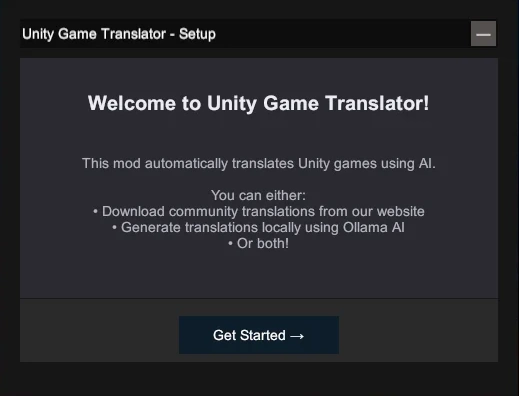
Wizard steps
- Online Mode - Enable to sync translations with the website. Disable for fully offline use.
- Hotkey - Set the key combination to open the settings overlay (default: F10).
- Target Language - Choose your preferred language or use 'auto' to detect your system language.
- AI Translation - Optionally configure an AI server for live translation (local or cloud).
Hotkey conflicts
If the default hotkey conflicts with the game, change it in the wizard or later in config.json.
Quality System (HVAS)
Every translation entry has a quality tag indicating its source. This helps you understand the translation quality at a glance.
Quality Score
The quality score is calculated as: (H×3 + V×2 + A×1) / total entries. Maximum score is 3.0 (100% human translations).
| Score | Quality Level |
|---|---|
| 2.5+ | Excellent - Mostly human |
| 2.0+ | Good - Human reviewed |
| 1.5+ | Fair - Partially reviewed |
| 1.0+ | Basic - Minimal review |
| <1.0 | Raw AI - Unreviewed |
Capture Mode
In capture mode, the mod records original text without translating. Perfect for creating 100% human translations from scratch. Captured text appears with tag 'H' and empty value.
Collaboration
Main / Branch / Fork Model
UnityGameTranslator uses a collaborative model inspired by Git:
Main
The primary translation owned by its creator. Public and searchable by other users.
Branch
A contribution to someone else's Main. Private, only visible to the Main owner for merging.
Fork
An independent copy of a Main. Becomes your own Main with separate lineage.
Typical Workflow
- Download an existing translation (becomes your local copy)
- Improve it with better translations or fill missing entries
- Upload your changes (becomes a Branch contribution)
- The Main owner reviews and merges your work
Uploading Translations
You can upload translations from the mod or directly on the website:
From the Mod
- Link your account using Device Flow
- Click 'Upload' in the settings overlay
- Your translation is uploaded with detected game info
From the Website
- Go to 'Upload Translation' page
- Drag and drop your translations.json file
- Review detected info and confirm
Merging Contributions
As a Main owner, you can merge Branch contributions from the merge view:
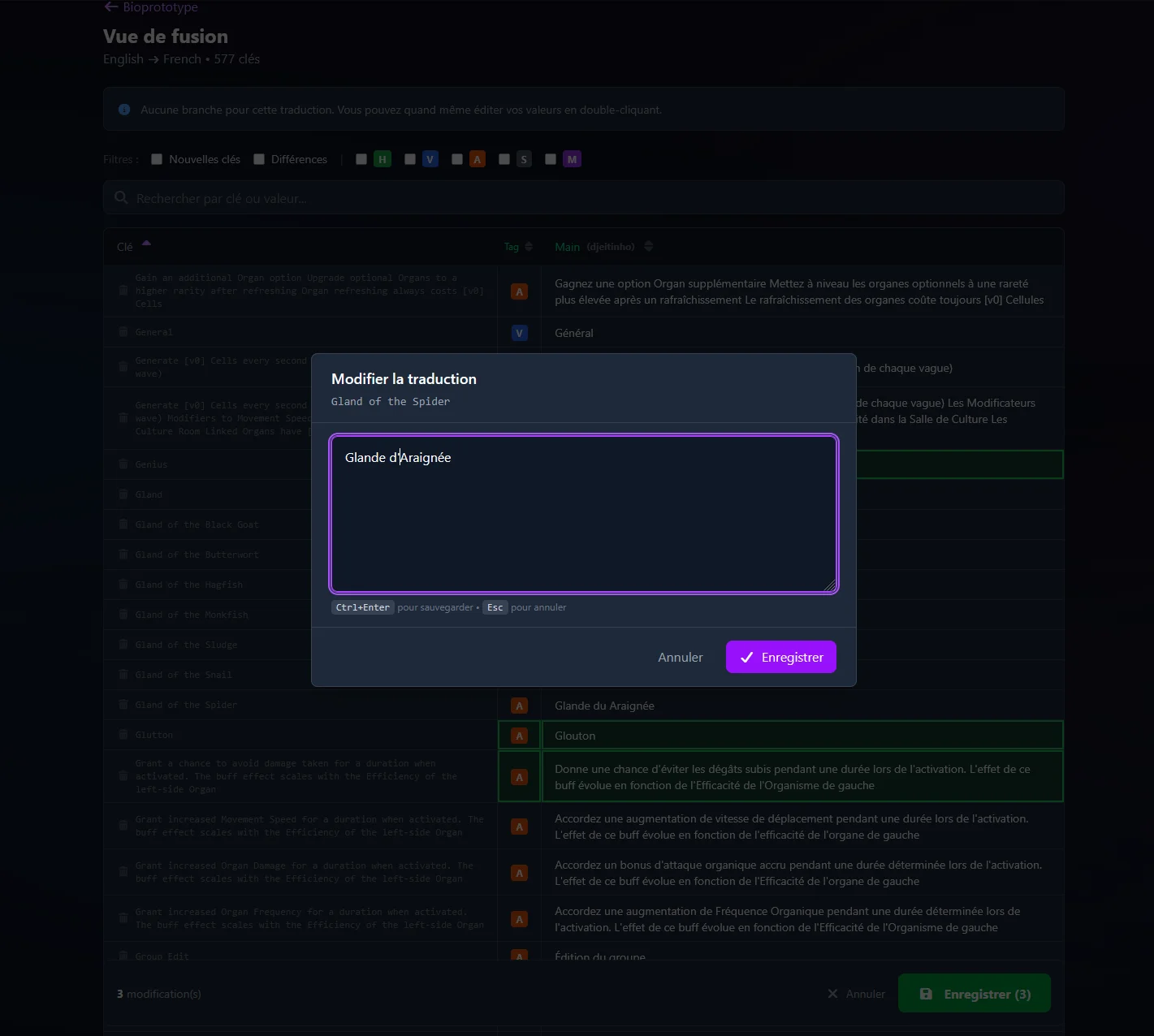
Click on any cell to select that version. Double-click to edit manually. Changes are highlighted and tracked until you save.
Sync & Online Mode
Online Mode Features
When online mode is enabled, the mod connects to UnityGameTranslator website:
- Automatically search for translations when launching a game
- Get notified when updates are available
- Download community translations with one click
- Upload your translations to share with others
Link Your Account
Connect your account to sync translations. No password typing in-game - you authenticate securely in your browser:


- Click 'Login' in the mod settings overlay
- Note the displayed code (e.g.,
ABC-123) - Visit https://unitygametranslator.asymptomatikgames.com/link
- Enter the code and approve - the mod automatically logs in
Security
Your credentials never leave the browser. The mod only receives a secure token encrypted on your device.
Multi-Device Sync
Use the same translation across multiple devices. The mod detects changes and prompts you:
| Situation | Mod Action |
|---|---|
| Only local changes | Prompt to upload |
| Only server changes | Prompt to download |
| Both have changes | 3-way merge |
Configuration
Configure via the in-game overlay or edit config.json in the mod folder:
{
  "ai_url": "http://localhost:11434",
  "ai_model": "",
  "ai_api_key": null,
  "enable_ai": false,
  "target_language": "auto",
  "settings_hotkey": "F10",
  "online_mode": true,
  "sync": {
    "check_update_on_start": true,
    "auto_download": false,
    "notify_updates": true
  }
}| Option | Default | Description |
|---|---|---|
target_language |
"auto" |
Target language ('auto' detects system language) |
enable_ai |
false |
Enable AI translation |
ai_url |
"http://localhost:11434" |
AI server URL |
ai_model |
"" |
AI model for translation |
ai_api_key |
null |
API key for cloud providers (encrypted at rest) |
settings_hotkey |
"F10" |
Key combination to open overlay |
online_mode |
true |
Enable website sync features |
sync.auto_download |
false |
Automatically download updates |
External Resources (Fonts & Images)
UnityGameTranslator can use custom fonts and replacement images to improve the visual quality of translations. This is especially useful for languages with characters that aren't supported by the game's default font, or when you want to translate text baked into images (logos, buttons, title screens...).
External resources are optional. The mod works perfectly without them — use them only when you need them.
Where to place the files
The mod looks for resources inside dedicated fonts/ and images/ subfolders. The parent folder depends on your mod loader:
BepInEx
<Game>/BepInEx/plugins/UnityGameTranslator/fonts/
<Game>/BepInEx/plugins/UnityGameTranslator/images/
MelonLoader
<Game>/UserData/UnityGameTranslator/fonts/
<Game>/UserData/UnityGameTranslator/images/
Custom fonts
Drop .ttf or .otf font files into the fonts/ folder to make them available in the Translation Parameters panel:
- Supported formats: .ttf (TrueType) and .otf (OpenType)
- The filename (without extension) becomes the font name shown in the UI
- Open the in-game settings → Translation Parameters → assign fonts per UI element or globally
Replacement images
Drop .png files into the images/ folder to replace in-game sprites:
- Supported format: .png (with transparency)
- Use the in-game image capture feature to export existing sprites, edit them externally, then save the modified versions back into the images/ folder
When downloading external resources from a community translation, the link is provided by the uploader and points to third-party content. We are not responsible for external links. Always verify the source before downloading.
Troubleshooting
Mod not loading?
Verify you installed the correct version for your game:
- Check if the game uses Mono or IL2CPP (see Installation section)
- Verify the mod is in the correct folder (plugins/ or Mods/)
- Check the mod loader log file for errors
AI not translating?
Common issues with AI translation:
- Verify your AI server is running
- Verify the model is available on the server
- Use the 'Test connection' button in settings
Overlay not showing?
Press your configured hotkey (default: F10). If it conflicts with the game, edit config.json to change settings_hotkey.
Sync not working?
Verify 'Online mode' is enabled in settings and check your internet connection.
Need more help? Open an issue on GitHub